
Appearance
Layouts
Report Template
The Report Template tab lets you choose and customize the look and layout of your invoice.
Report Template Screen
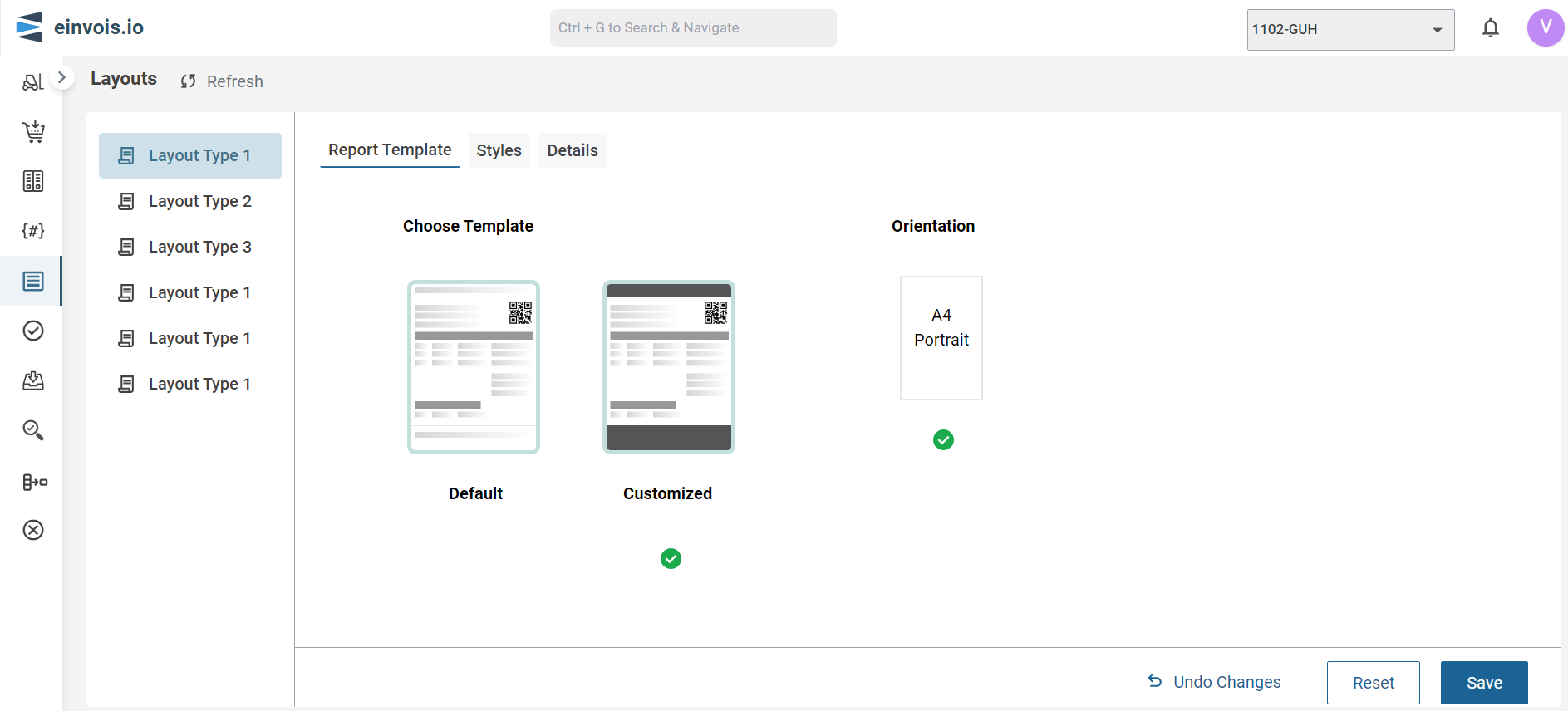
Choose Template
Default
This option represents the standard report template with a light background and basic styling.
Customized
This option represents a customized report template, possibly with different colors, fonts, and additional design elements. The check mark indicates that the "Customized" template is currently selected.
Orientation
A4 Portrait
This option sets the page orientation to A4 size in portrait mode. The green check mark indicates that this orientation is currently selected.
Styles
In the Styles section, you can customize the visual appearance of your invoices to ensure they align with your design preference. This includes selecting fonts, adjusting colors and setting content alignment for various elements of the invoice.
Styles Screen
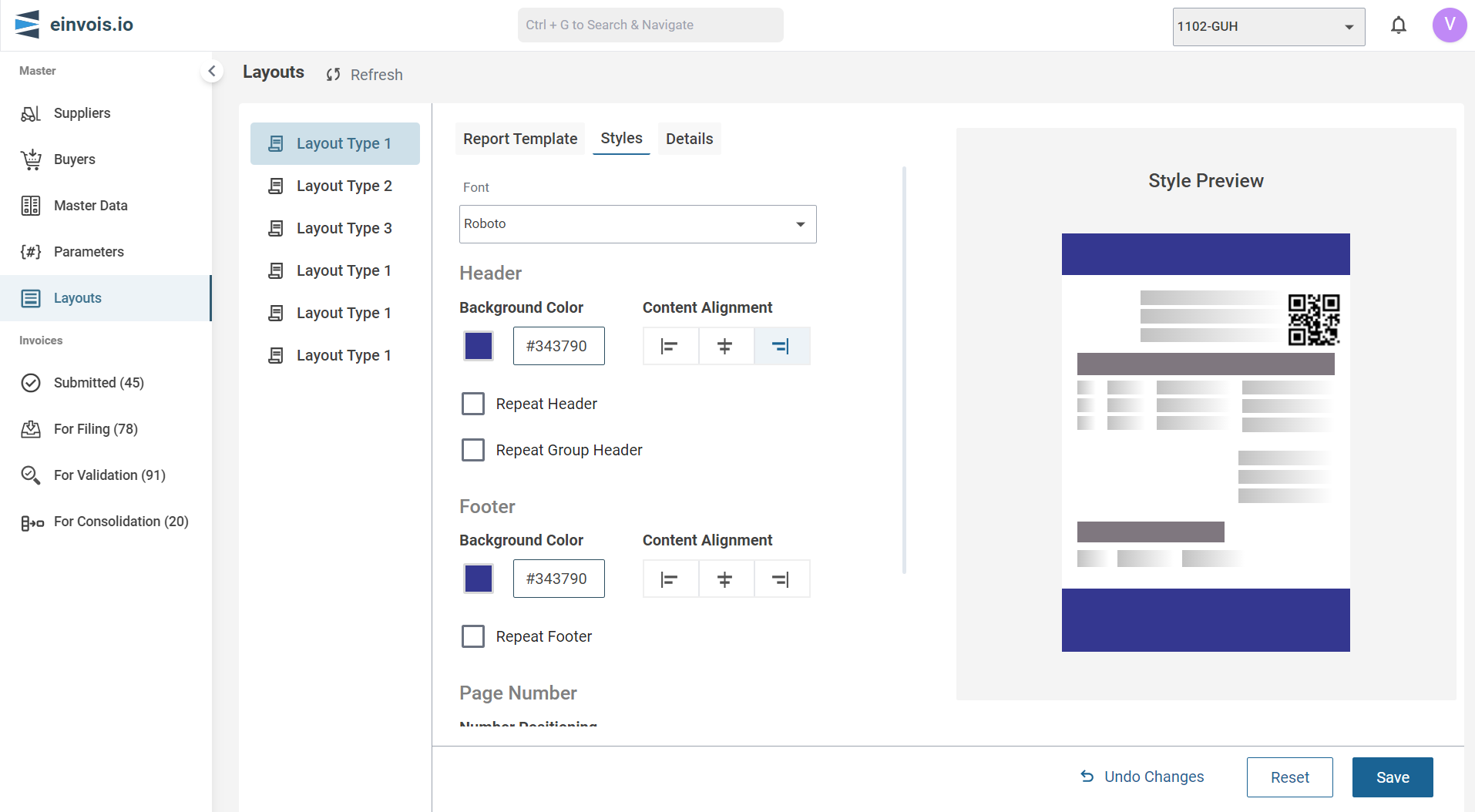
Font
Use the dropdown menu to choose from available fonts.
Header
Background Color
Set the background color for the header section. Use the color picker or input a hex color code.
Content Alignment
Choose how the header content is aligned (left, center, or right).
Repeat Header
Enable this option to repeat the header on each page of the invoice.
Repeat Group Header
Enable this option to repeat the group header on each page if the content is grouped.
Footer
Background Color
Set the background color for the footer section. Use the color picker or input a hex color code.
Content Alignment
Choose how the footer content is aligned (left, center, or right).
Repeat Footer
Enable this option to repeat the footer on each page of the invoice.
Page Number
Number Positioning
Select the positioning for the page number (left, center, or right).
Table Header
Background Color
Set the background color for the table header section. Use the color picker or input a hex color code.
Style Preview
As you make adjustments, the Style Preview pane on the right side of the screen will update to show a live preview of how your invoice will look with the selected styles. This helps you to see the impact of your changes in real-time.
Details
In the Details section, you can configure the specific fields of your invoice. This section includes the following components:
- Report Header
- Group Header
- Detail
- Footer
Details Screen
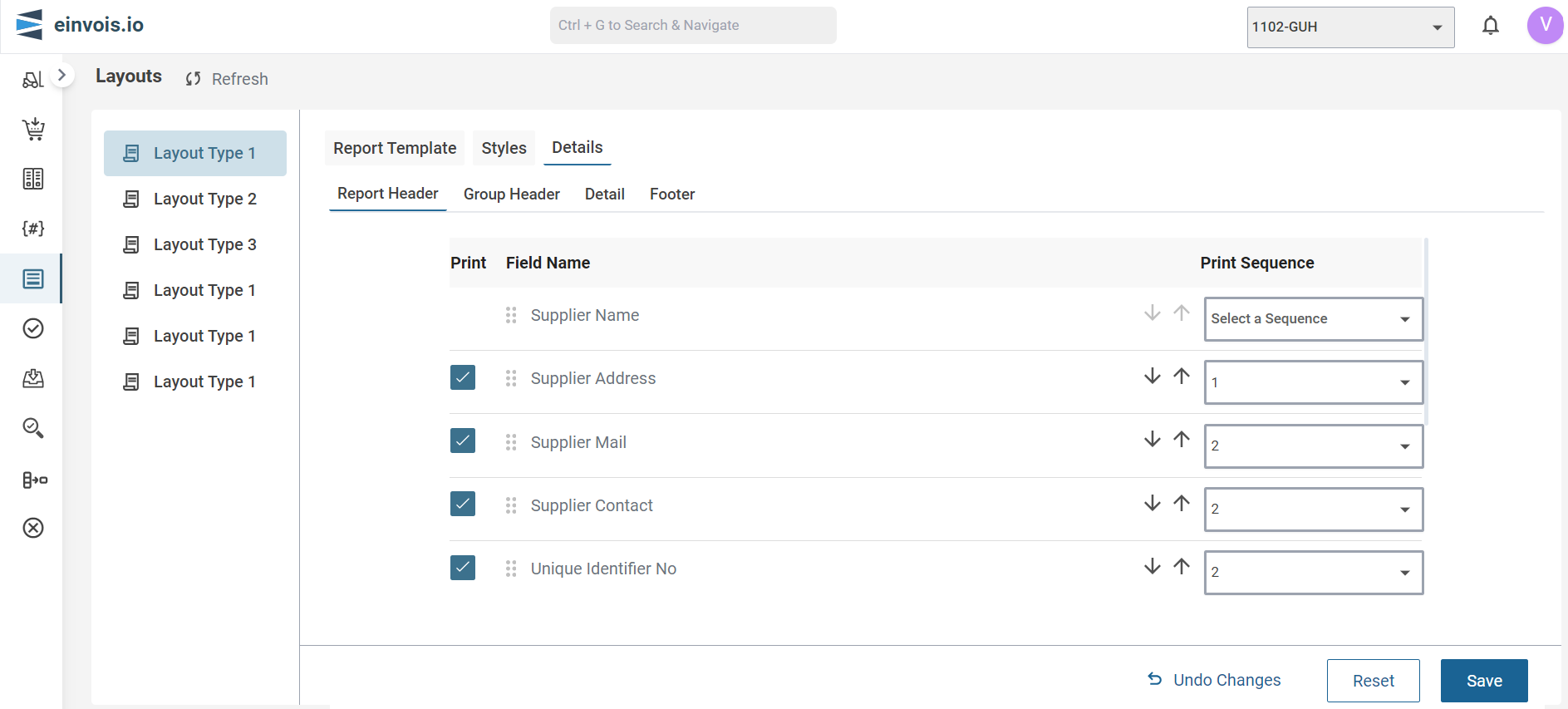
Report Header
Customize the header that appears at the top of your invoice. This can include your company logo, contact information, and other key details.
Group Header
Buyer information and Supplier information are available in this group header.
Detail
Configure the main content of your invoice. This includes line items such as products, services, quantities, and prices.
Footer
Customize the footer that appears at the bottom of your invoice. This can include Digital Signature, Date & Time of Validation and Page Number.
Customization Options
Show/Hide Fields
It allows you to choose the needed fields. By enabling or disabling specific fields, you can ensure that only the necessary information is printed, making your invoices clear and concise. This helps focuses on the most relevant details for your recipients.
Rearrange Fields
Use the dropdown menus to rearrange the position of fields. This allows you to organize the content in a way that best suits your needs. By customizing these components, you can ensure that your invoice is containing only the necessary information and presented in an organized manner.
Note
Remember to click Save to apply your changes, or Undo Changes to revert to the previous settings. You can also use the Reset button to restore the default styles.