
Appearance
Parameters
Implemented Components
Implementation Components is use to customize setting that determines the specific invoice options to be applied.
Implemented Components Screen
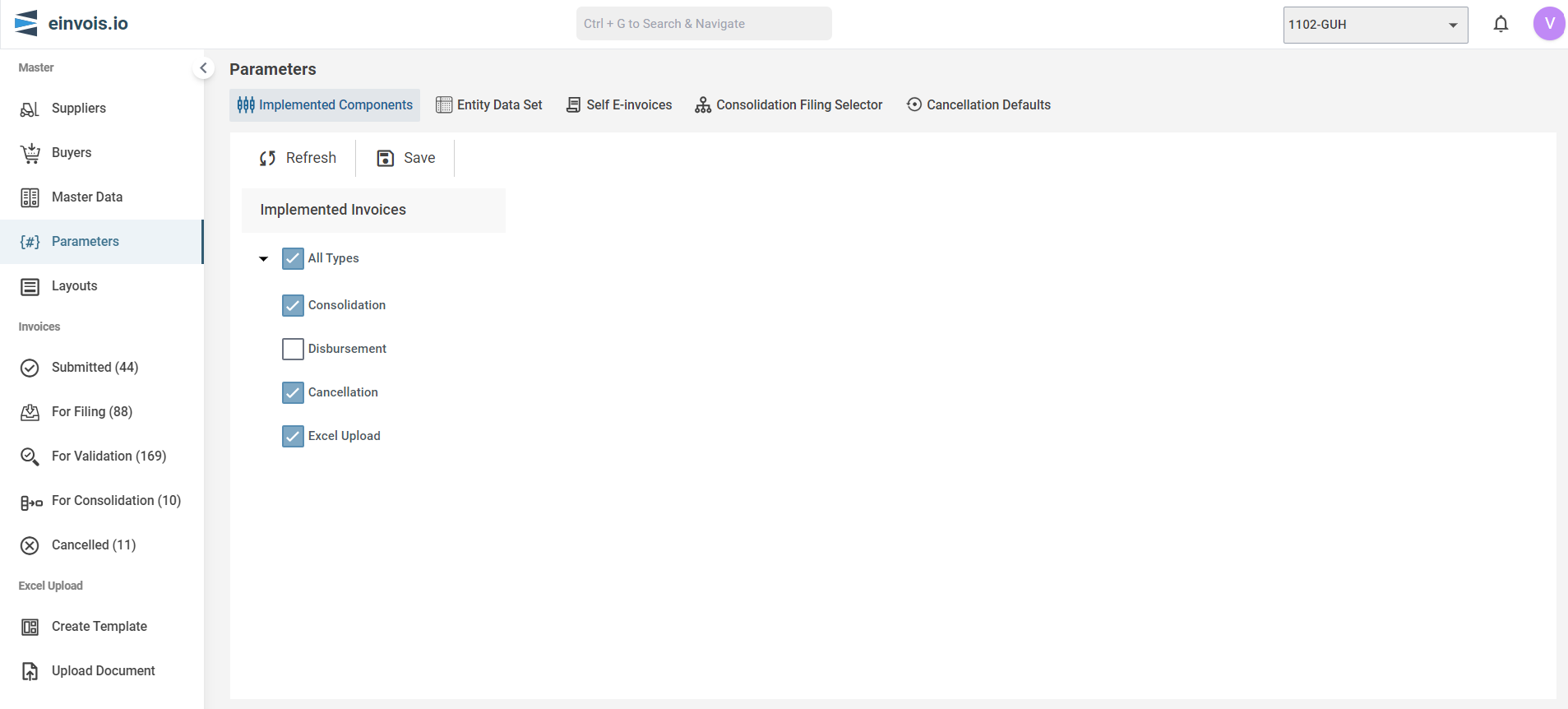
Consolidation
Select this check box if e-invoicing consolidation is applied.
Cancellation
Select this check box if e-invoicing cancellation is applied.
Disbursement
Select this checkbox if payments are made on behalf of the buyer to a third party, and an e-invoice is disbursed from third party directly to the buyer.
For example:
Disbursements involve three parties:
- The payee
- Who pays expenses on behalf of the payer (buyer)
- A third party.
Disbursements refer to expenses paid by the payee on behalf of the payer (buyer) to a third party. These expenses are related to services provided or goods sold by the payee to the payer.
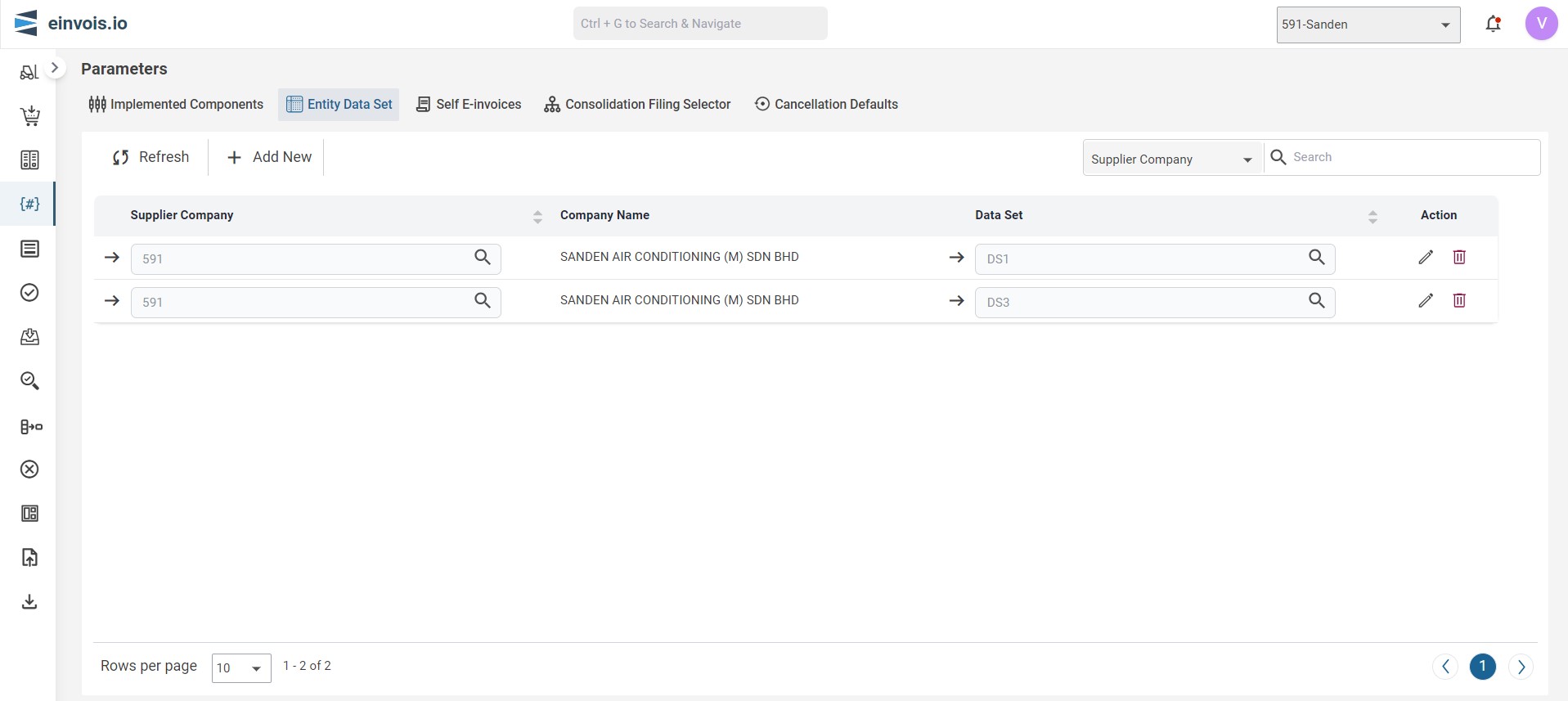
Entity Data Set
Entity Data Set Screen
Add New
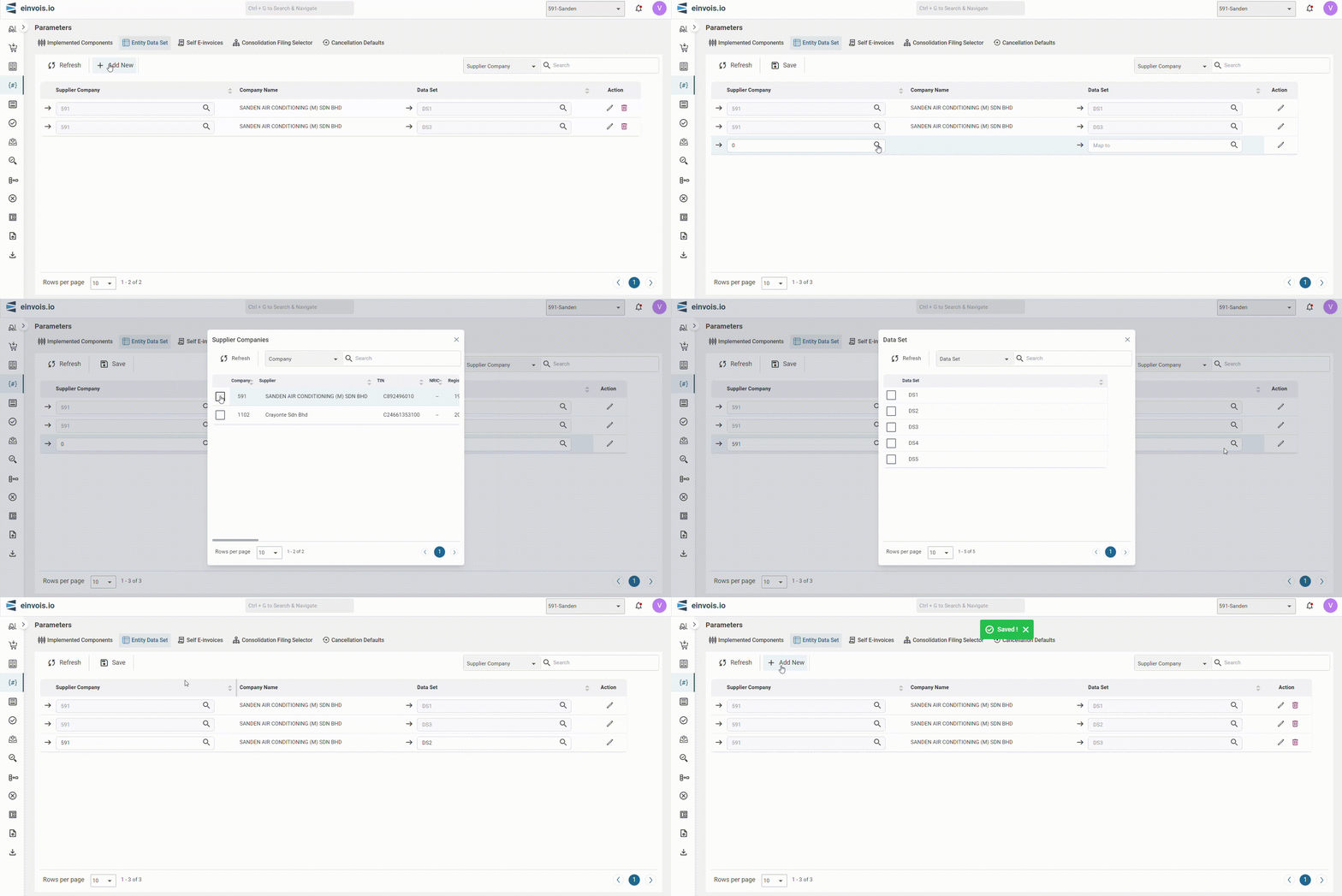
Click the Add New button, select a supplier company and the data set to add a new Entity Data Set.
Edit
The edit section allows users to add Additional Information related to line summarization.
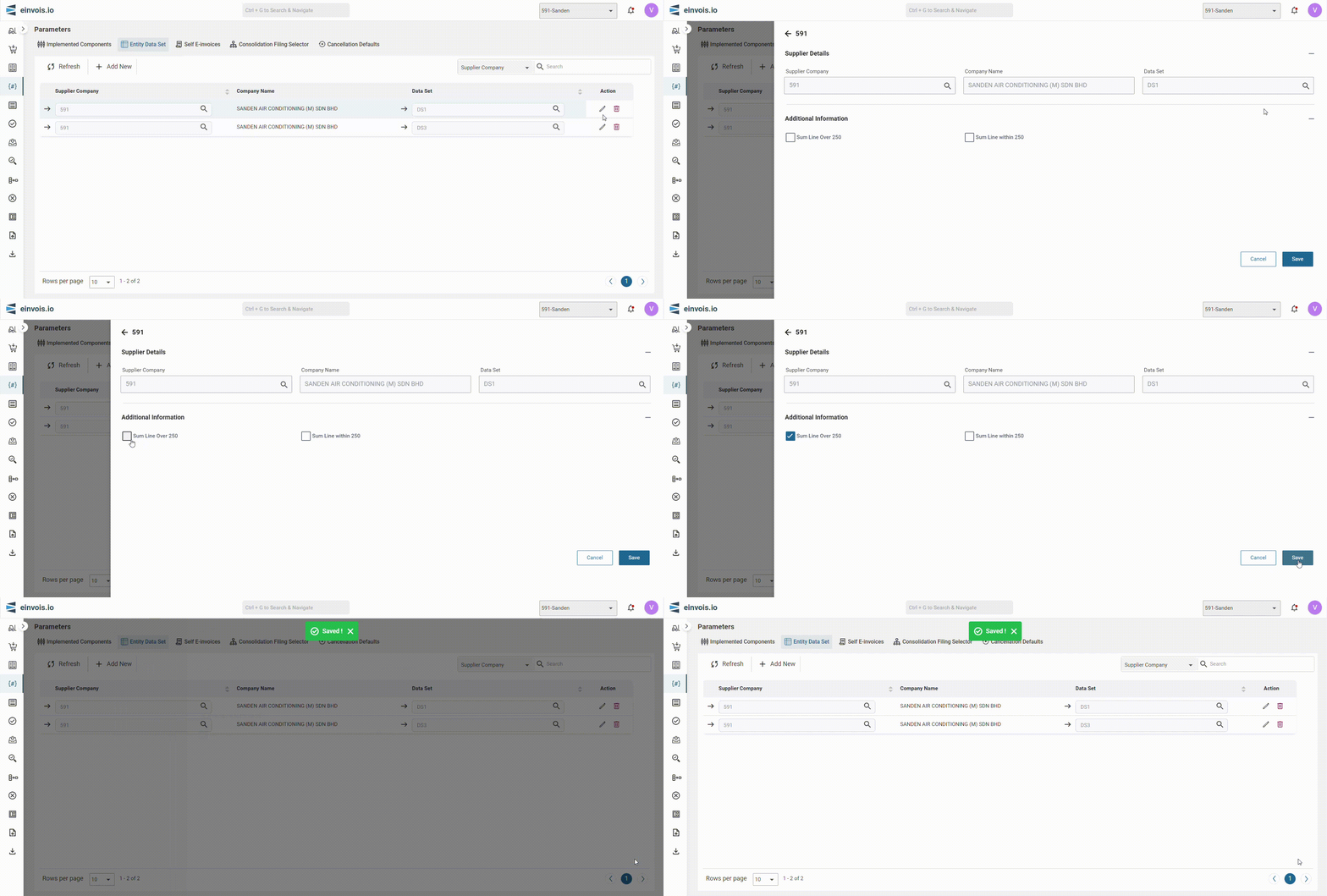
In the line detail, provide 2 options for line summarization.
Lines will be summarized based on the following criteria:
- Item
- Measurement
- Unit Price
- Tax Type
- Detail of Tax Exemption
- Discount Rate
Options for Line Summarization:
Sum Line Over 250:
Check this box if the total number of lines in the invoice exceeds 250.
Sum Line within 250:
Check this box if the total number of lines in the invoice is 250 or fewer.
Self E-invoices
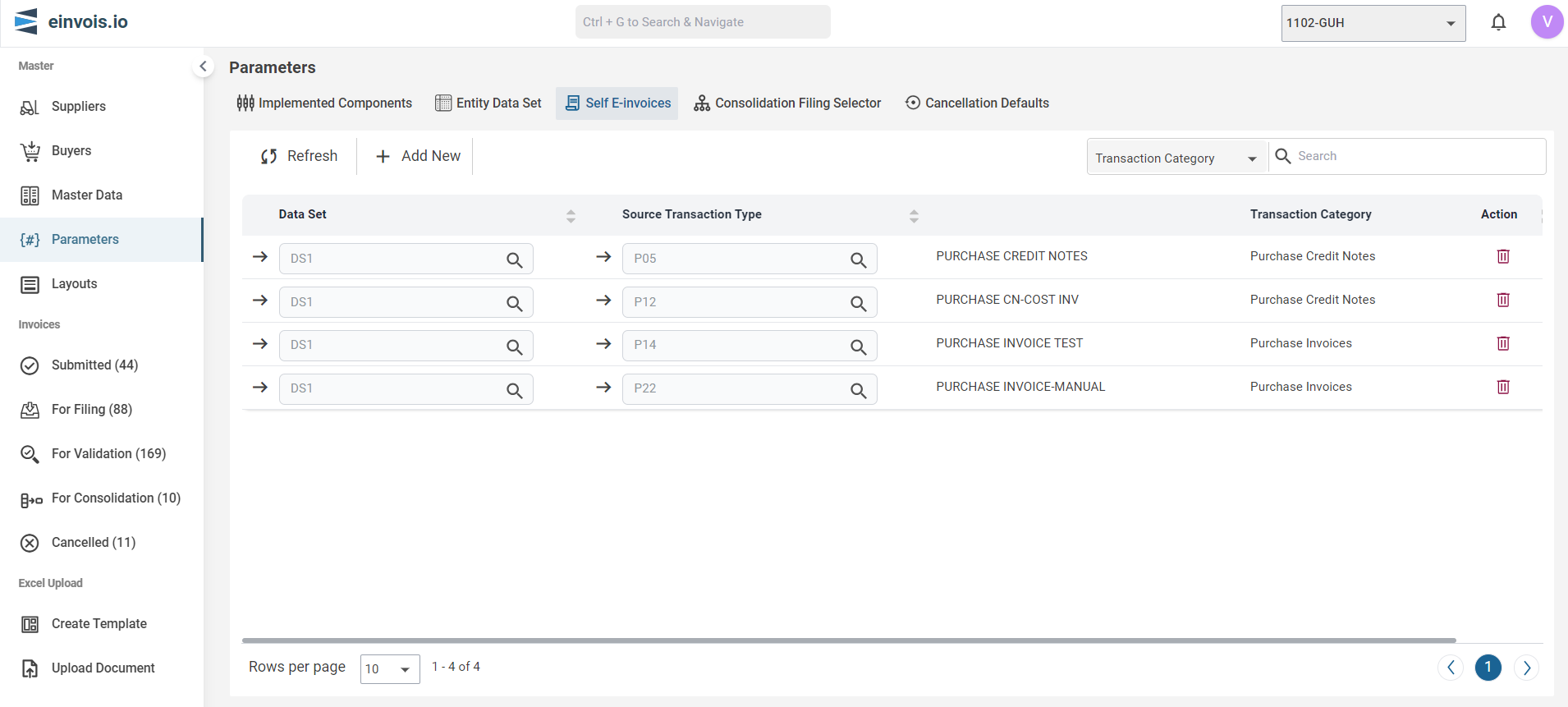
Use this session to define the ERP Transaction Types required for e-invoices issuance during self-billing within Malaysia.
Note
Only Transaction Types categorized as Purchase Invoices or Purchase Credit Notes in ERP will be available for selection.
If outside of Malaysia, e-invoices will be automatically generated as self-bills without requiring monitoring from Transaction Types.
Self E-invoices Screen
Note
If outside of Malaysia, e-invoices will be automatically generated as self-bills without requiring monitoring from Transaction Types.
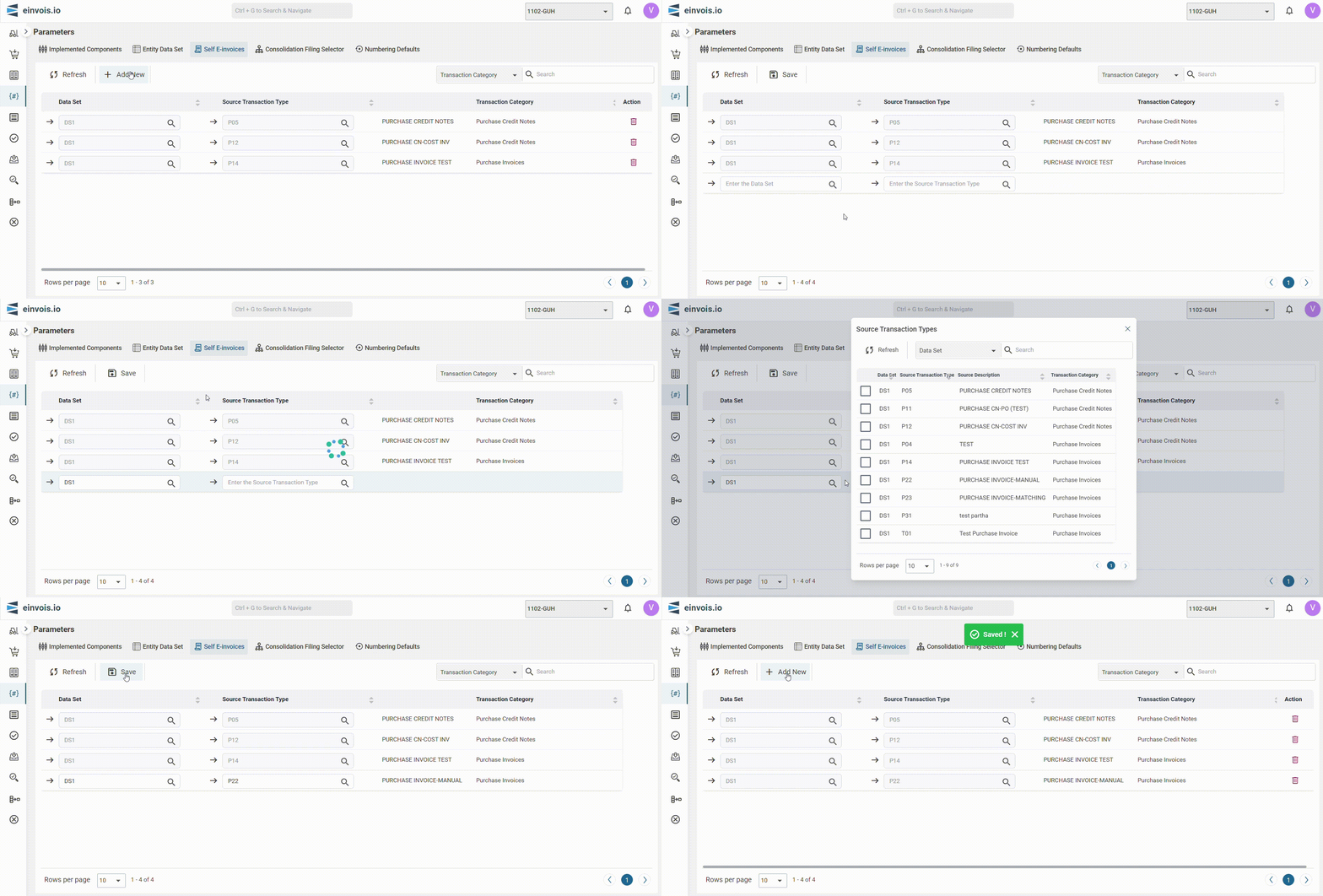
Add new
Note
Only Transaction Types categorized as Purchase Invoices or Purchase Credit Notes in ERP will be available for selection.
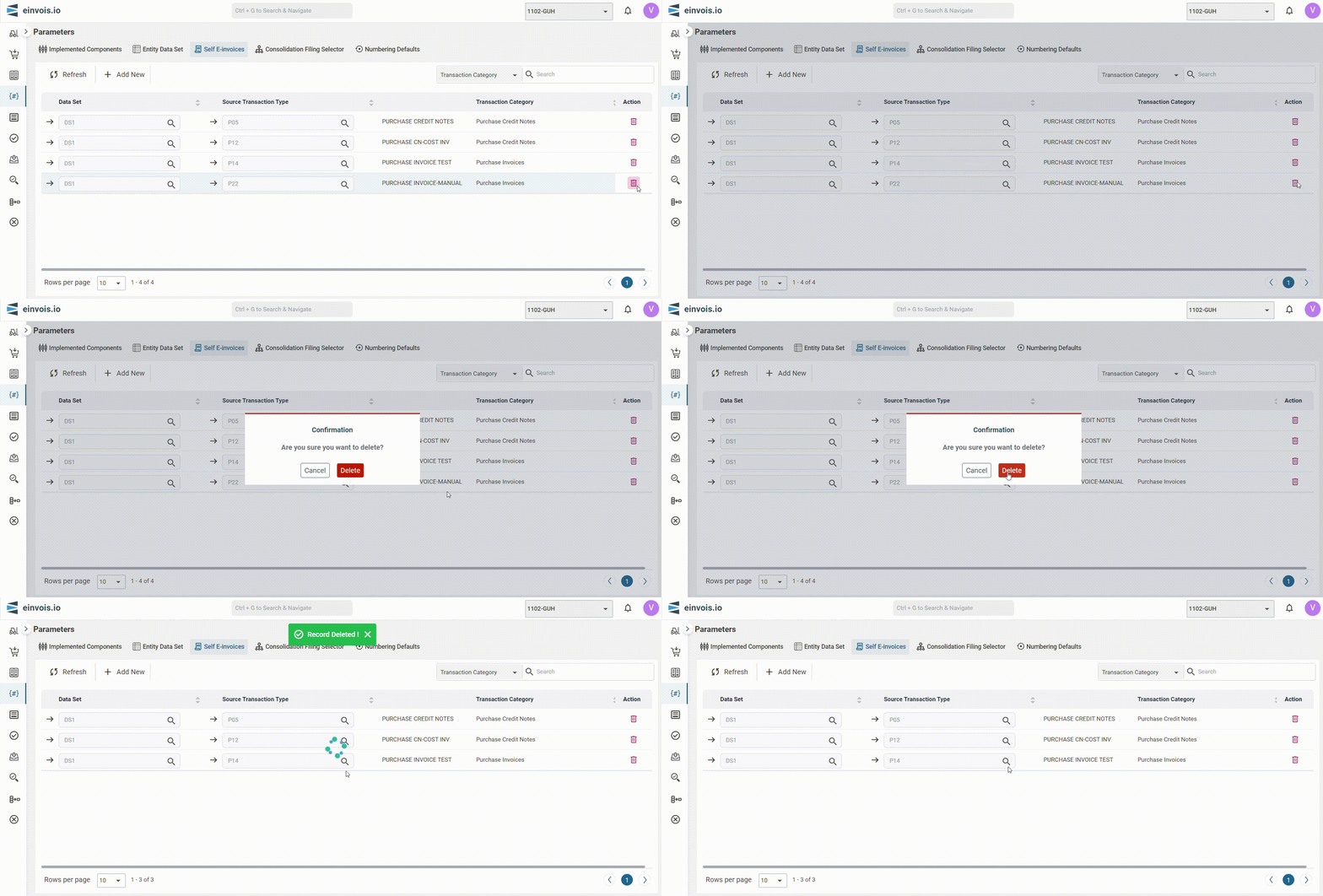
Delete
Consolidation Filing Selector
This session will only be accessible if "Consolidation" is checked in Parameters. Use this session to view and configure Master Data for Consolidate invoice.
The following fields will be used in consolidating invoices and will be displayed for viewing purposes only, without allowing modification.
Buyer
Consolidate Buyer is particularly relevant when the transactions are not associated with any particular buyer or when the invoices are being consolidated for general reporting purposes rather than for a specific buyer or organization. The default value provided, "General Public".
TIN
This is a unique identifier assigned to the Consolidation Buyer for tax purposes. The default value provided, "EI00000000010" serves as a placeholder or default TIN assigned to the Consolidation Buyer.
NRIC
This is buyer's NRIC for consolidating invoices, The default value provided, "NA".
Registration Number
Number This is buyer's registration number for consolidating invoices, The default value provided, "NA".
Passport Number
This is buyer's passport for consolidating invoices, The default value provided, "NA".
Army Identification
This is buyer's Army Identification for consolidating invoices, The default value provided, "NA".
SST Registration
This is buyer's SST for consolidating invoices, The default value provided, "NA".
Tourism Tax Number
This is buyer's Tourism Tax Number for consolidating invoices, The default value provided, "NA".
MSIC Code
This is buyer's MSIC Code for consolidating invoices, The default value provided, "NA".
Business Activity
This is buyer's Business Activity for consolidating invoices, The default value provided, "NA".
Bank Account Number
This is buyer's Bank Account Number for consolidating invoices, The default value provided, "NA".
E-mail Address
This is buyer's email address for consolidating invoices, The default value provided, "NA".
Address Code
This is buyer's address for consolidating invoices, The default value provided, "NA".
Contact Number
This is buyer's contact number for consolidating invoices, The default value provided, "NA".
Categories
The Consolidation Category is divided into three type of invoice sections, each section allows the selection of only one category:
| a. Sales Order | b. Manual Sales Invoice | c. Finance ACR |
|---|---|---|
|
|
|
The portal consolidates invoices based on the category selected in each section. If none of the category is selected in a section, the portal will submit E-invoices individually for that particular invoice section.
Example:
If category of "Buyer" is selected in the Sales Invoice section, the Portal will consolidate sales invoices based on the Consolidate checkbox in the Buyer Company.
If the category of "Sales Order Type" is selected in the Sales Invoice section, users required to specify the sales order types eligible for consolidation within the portal, and the portal will consolidate sales invoices based on the defined sales order types.
Consolidation Category Master Data
Use this session to configure the Consolidation Category Master Data based on category selected in each invoice sections in the Parameters - Consolidation Filing Selector
Once invoice data processing begins in the portal, the selected categories cannot be changed.
Cancellation Defaults
Use this session to define the ERP Number Group and Series required for e-invoices cancellation in Portal
This session will only be accessible if "Cancellation" is checked in Parameters.